What is Kanban?
Kanban is a visual method for organizing tasks and improving workflow. Originally developed by Toyota for production management, it is now widely used in software development, project management, and personal productivity. The core idea is simple: visualize your work and limit how much is in progress.
The Kanban Board
A typical Kanban board consists of columns like "To Do," "Doing," and "Done." Each task is represented by a card that moves from left to right as it progresses. This gives you an immediate overview of status, bottlenecks, and workload.
WIP Limits
A key part of Kanban is the WIP limit — Work In Progress limit. It defines how many tasks can be active in a given column (e.g., "Doing") at once. This prevents overload and encourages focus. You can only pull in a new task when something has been completed.
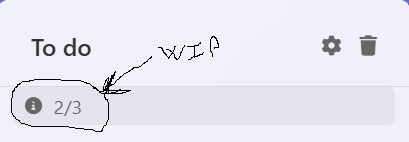
Example of WIP limits in a Kanban board
Pull-Based Workflow
Unlike methods with fixed iterations or sprints, Kanban is flexible and pull-based. You work on what you have capacity for — no more, no less.
Your Personal Kanban
In GetYourHandsOffMyData, you get a personal Kanban board without the noise. No server, no collaboration features — just you, your tasks, and a simple, private workflow that respects your boundaries.
Measurement
We measure time from when a task is created until it ends in the "Done" column. Based on this data, we calculate the average cycle time for your workflow.
Don't worry — we don't collect this data. It's saved locally in your browser, keeping your productivity metrics private and under your control.
Data Management
Your Kanban board data is automatically saved in your browser's local storage. Here's how to manage your data:
Automatic Saving
Your tasks, lists, and board configuration are automatically saved as you work. No manual saving required — your data persists between browser sessions.
Export Data
To export your data, click the export button in the top toolbar. This downloads a JSON file containing all your tasks, lists, and settings. Use this for backup or to transfer your data to another device.
Import Data
To import data, click the import button in the toolbar and select a previously exported JSON file. This will replace your current board with the imported data. Note: Importing will overwrite your existing data, so make sure to export first if needed.
Clear Data
To start fresh, you can clear all data using the clear button. This permanently removes all tasks, lists, and settings from your browser storage.